For your first psytrance mix you need a laptop, an up-to-date browser and two tracks. Open VibeField DJ, load one track onto deck A and one onto deck B, match the tempo with Sync and slowly move the crossfader from left to right in Sweep mode. The app hands over the bass first and then everything else.
There is nothing to install and no account. Your music stays on your computer; nothing is uploaded. This guide walks through every step with screenshots and explains why psytrance transitions work differently from other genres.
What you need
- A laptop or desktop computer with an up-to-date browser. Phones are not a good fit: two decks and a mixer need space.
- Two psytrance tracks as audio files, ideally at a similar tempo (most psytrance sits between 138 and 148 BPM).
- Headphones or speakers. For your first mix the laptop's normal output is enough.
Step 1: Open the app and add music
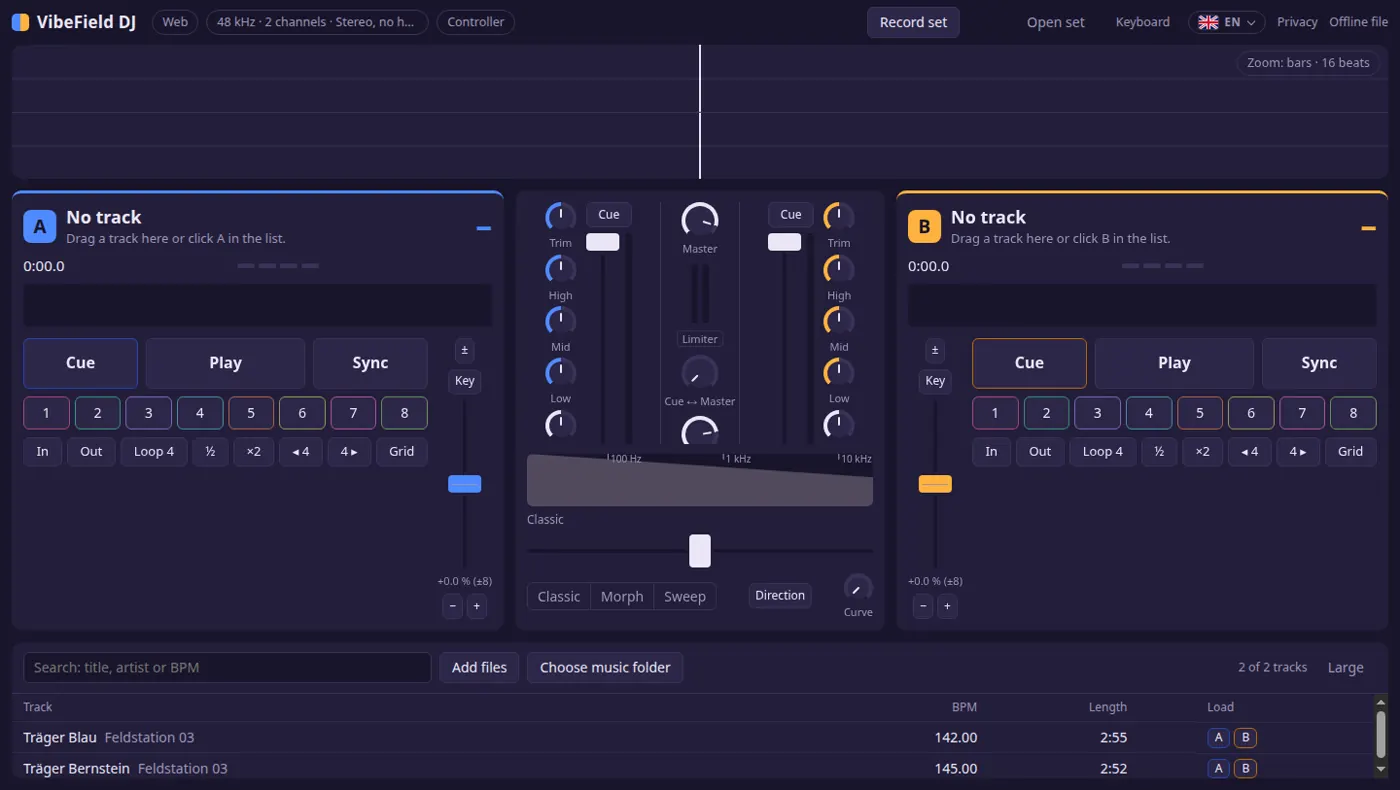
Open dj.vibefieldlabs.com. The library is at the bottom. Click Add files and pick two tracks, or simply drag the files into the window. Choose music folder gives the app a whole folder, and it remembers it for your next visit.
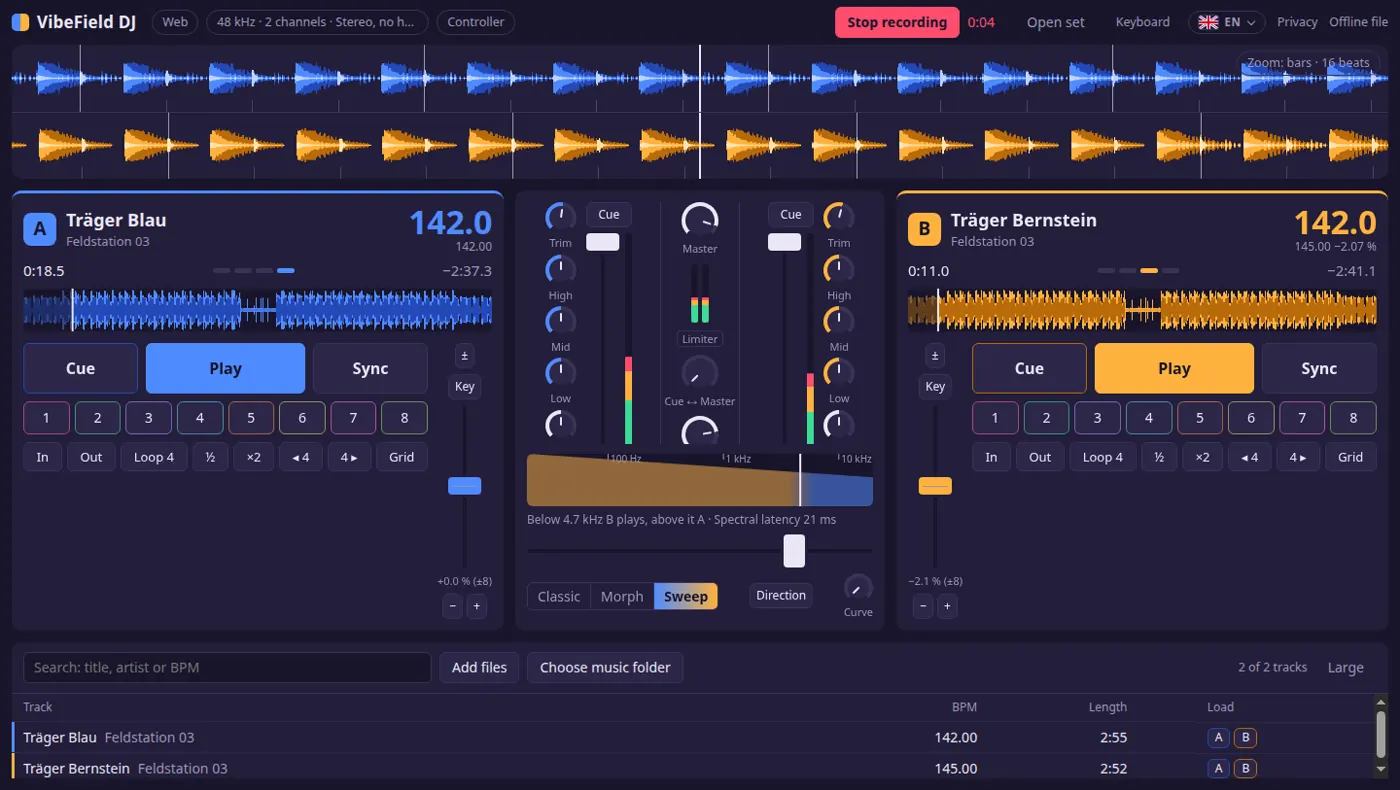
The app analyses each track and shows tempo and length in the list. In our example “Träger Blau” runs at 142 BPM and “Träger Bernstein” at 145 BPM.
Step 2: Load the tracks onto the decks
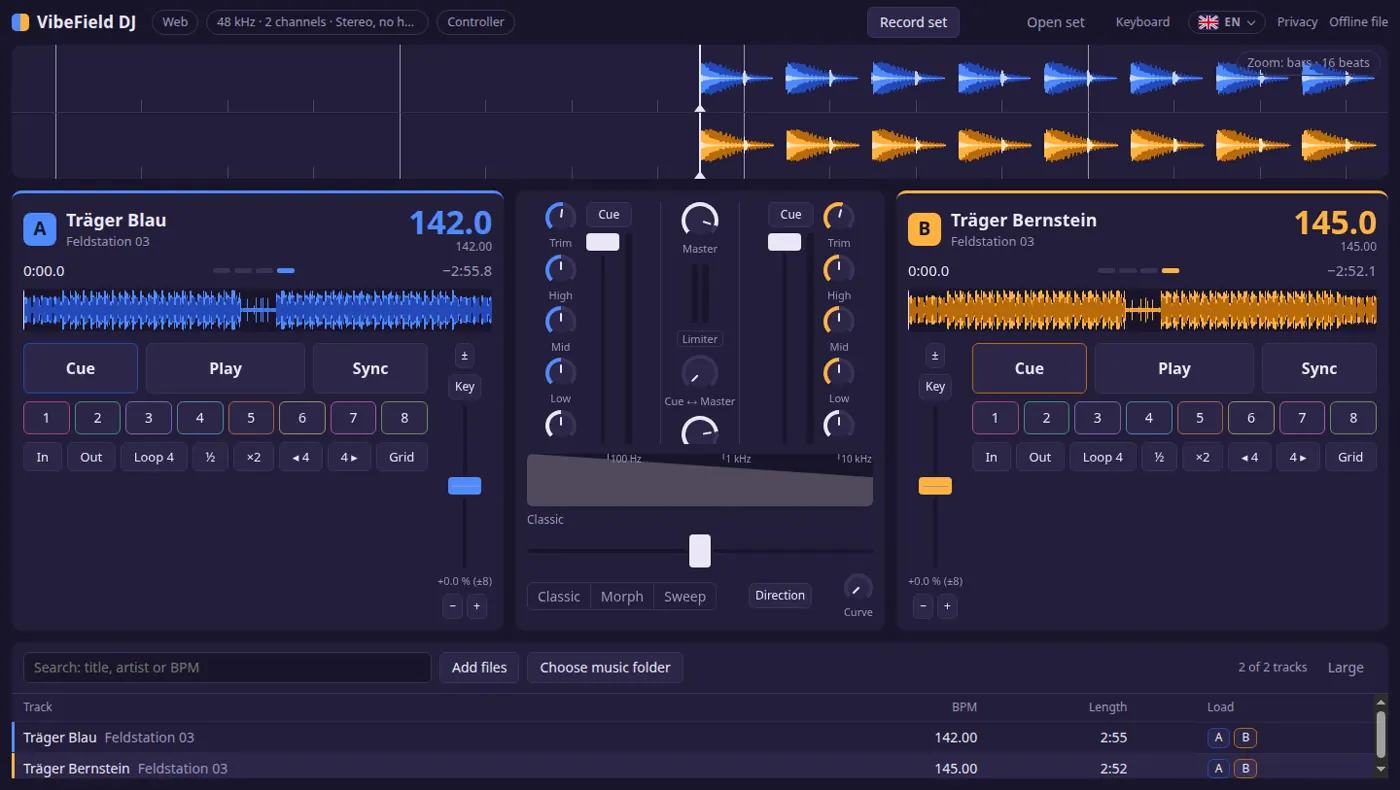
Each row has two buttons on the right: A loads the track onto the left, blue deck, B onto the right, amber one. Load the track you start with onto A and the next one onto B. You can also drag tracks straight onto a deck.
Both waveforms now appear at the top, one above the other, blue for A and amber for B. Later they show you whether the kicks of both tracks line up.
Step 3: Start deck A and match deck B with Sync
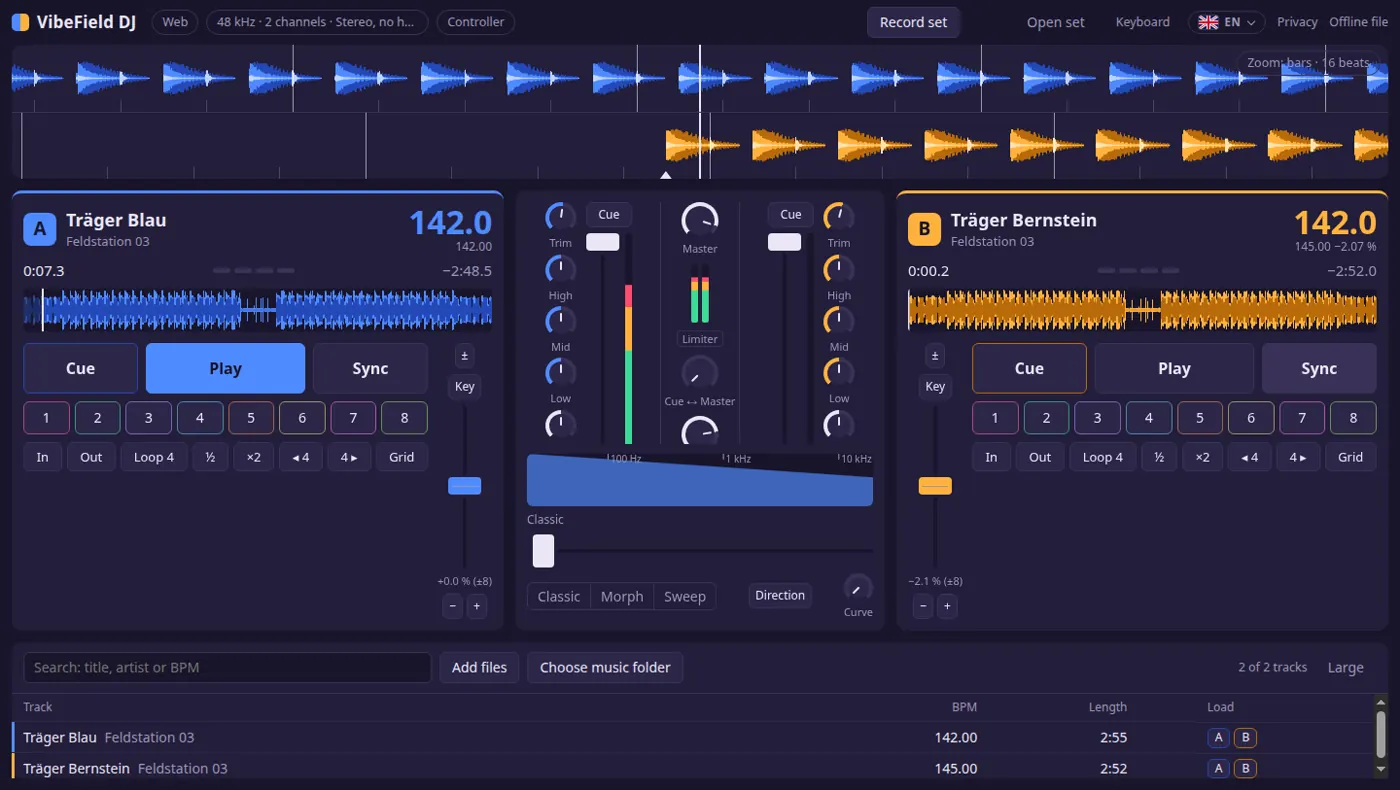
Move the crossfader in the middle all the way to the left so only deck A is heard, and press Play on deck A.
Now press Sync on deck B. The app adjusts B's tempo to A. In the example B then runs at 142.0 instead of 145 BPM, and below it you see how much the tempo changed (−2.07 %). With Key (keylock) the pitch stays the same.
Step 4: Find the right moment
Psytrance is built in blocks of 8 or 16 bars. A transition sounds natural when track B comes in exactly at the start of such a block, at the moment something changes in track A: a new element joins, a break starts or the outro begins.
- Listen to track A and count along: after 16 bars (64 beats) something almost always happens.
- Start deck B with Play at the start of a block. After Sync the kicks of both decks line up; you can see it in the waveforms at the top.
- Put the first kick of track B on one of the hot cues 1 to 8 so you can start it exactly on time next time.
For your first attempt it is fine to start B at any point and listen for the beat. The feel for blocks comes with every mix.
Step 5: The transition with Sweep
This is the key difference to other genres: psytrance lives on a rolling bassline between the kicks. Two basslines at once turn to mud straight away, so the bass has to move cleanly from one track to the other.
That is exactly what Sweep mode under the crossfader does. Select it and move the crossfader slowly from left to right over 16 to 32 bars. Below the field the app tells you what is happening, for example “Below 490 Hz B plays, above it A”: the bass already comes from track B, mids and highs still from track A. The further you go, the higher the split moves, until only B is left.
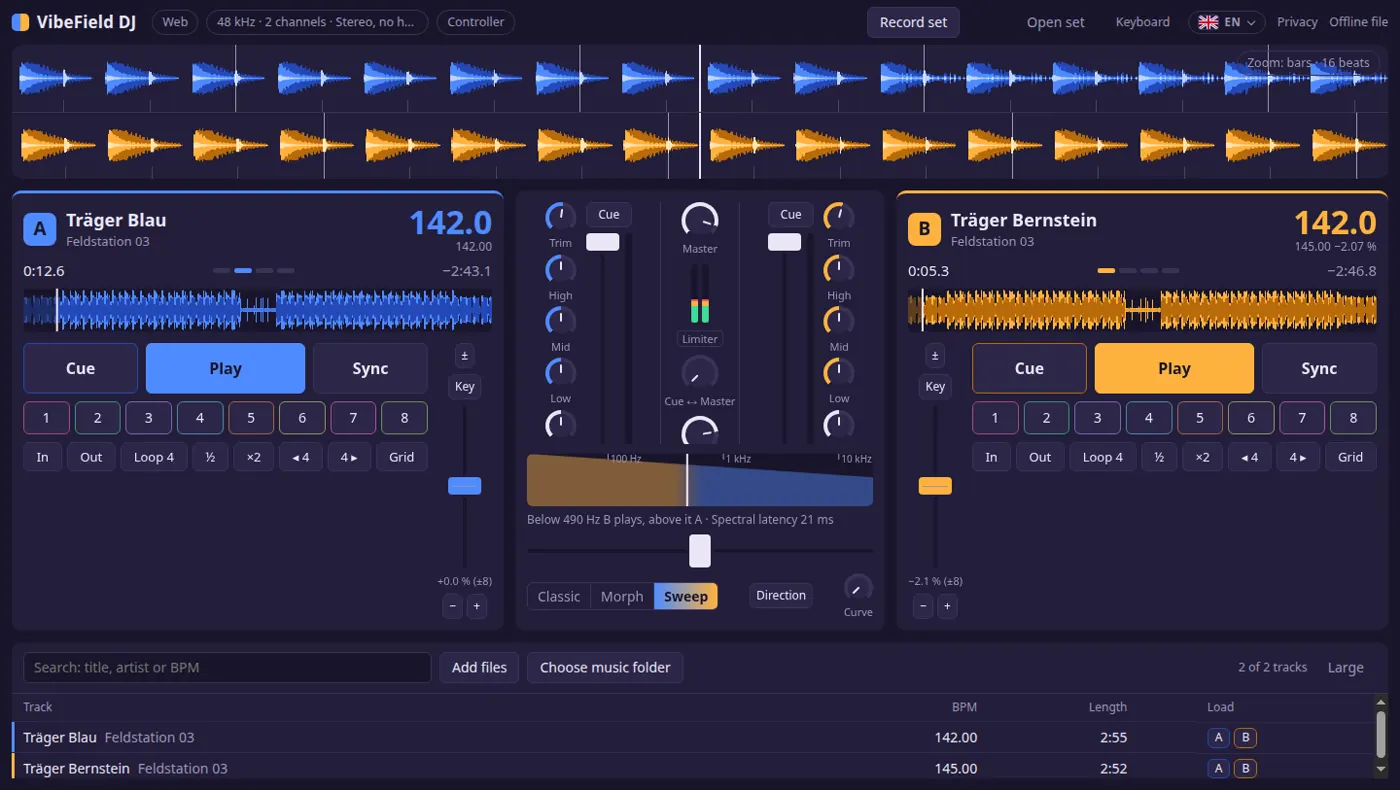
Direction sets whether the bass or the highs are handed over first, Curve how quickly the handover happens at the start and end of the crossfader's travel.
Alternative: the classic bass swap
In Classic mode the crossfader works like on any DJ mixer, and you do the bass swap yourself: turn channel 2's Low all the way down before you bring B in, then at the start of a block swap in one move: A's low down, B's low up. With Isolator on, turning a band fully left removes it completely.
Morph
The third mode, Morph, does not mix the two tracks side by side but blends their spectra, bin by bin. It sounds more like an effect than a transition and works best for short moments, for example in a break.
Step 6: Record the set
Click Record set at the top before you start. The app does not record the sound but your actions: which track starts when, where the crossfader is, how the controls move. From that the set can later be rendered without loss. Stop recording ends it, Open set loads a saved set again.
Common mistakes in a first psytrance mix
- Two basslines at once: in Classic mode without an EQ swap the basslines clash. Use Sweep, or turn the new track's low down first.
- Rushing the transition: psytrance transitions can be long. 16 to 32 bars is normal, which at 142 BPM is 27 to 54 seconds.
- Starting mid-phrase: if track B comes in halfway through a phrase, the mix feels bumpy even when the beats line up.
- Too loud: when Limiter lights up in the middle, the master limiter is working. Turn the master or the channels down a little.
FAQ
Do I need to install anything or create an account?
No. VibeField DJ runs in a browser tab. If you want to play offline, there is the Offline file at the top right: a single file that runs without internet when you double-click it.
Are my tracks uploaded?
No. The app reads your files directly on your computer. According to the app your music stays there and nothing is uploaded.
Can I pre-listen like on a DJ booth?
Every channel has a Cue button for pre-listening, plus headphone volume and a Cue ↔ Master control. At the top left the app shows which outputs your device has. On a laptop's normal stereo output it says “no headphone output”; then you mix with Sync and the waveforms, without a separate pre-listen.
Does a DJ controller work?
The Controller button at the top connects MIDI controllers. Your browser has to allow MIDI access for that; without it the app tells you so.
Which tracks are good for a first try?
Two tracks from the same subgenre with a similar tempo, for example two full-on or two progressive tracks. The closer the BPM, the less Sync has to change. The screenshots in this guide show two self-made test loops.
Open VibeField DJ and start your first mix. How the app came to the island is told in the journal: The Signal.